Toasty's Linux Install Guide
This guide is (slowly) undergoing a full rewrite! Be prepared for possibly conflicting information.Last Updated: Sept. 9th, 2026
Welcome! This carrd is here to give a hopefully beginner-friendly install guide and recommendations for different flavors of linux! With the death of Windows 10 and Microsoft's sketchy antics with 11, the time to make the switch is now!
Install Guide
First Things First...
First and foremost, You'll need to choose the version of, or distribution of linux you would like to use. This guide will be following the installation of CachyOS (pre-rewrite), but the installation process of the distributions (distros) in this guide are similar enough to follow along with.For images in this guide, open them in a new tab if you need to see them better.
Prerequisites
Before you get started, you'll need a few pieces of software and files, as well as a USB drive of reasonable storage size.
The Rufus bootable USB creator (Balena Etcher might still be a privacy concern, so I can't reccommend it in good faith here)
The .iso file of your distro of choice
What Distro Should I Use?
For an easy, gaming-focused, steam deck-like setup, check out Bazzite, or CachyOS if you're a little more tech savvy. For something more general-use and absolute-beginner friendly, check out Zorin OS or Linux Mint. Check out other people's opinions on distributions as well to learn in more detail what works best for you!As stated above, this guide will be following the installation process of CachyOS.
Gaming-focused Distributions
All-purpose / Casual Distributions
Do your own research regarding distributions. The ones listed here may not be the best option for you specifically. Regardless, if you don't like a certain distribution, you can always reinstall and choose another.
| Distro Name | Based On | Target Audience | Notable Features |
|---|---|---|---|
| CachyOS | Arch | Gaming | Blazing fast, most stable, rolling release model means latest updates always, at the cost of possibly breaking some things |
| Bazzite | Fedora | Gaming | Steam Deck-like gaming mode option, easy-to-understand command line helper for essential fixes (ujust) |
| Zorin OS | Ubuntu | Casual | Modified Gnome desktop to make the experience more akin to Windows or Mac, user friendly software and more |
| Linux Mint | Ubuntu | Casual | Windows-like Cinnamon desktop, good drop-in replacement for anyone |
If you're wondering if your favorite games will work on Linux, check out these nifty resources!
Creating Your Install Media
Rufus
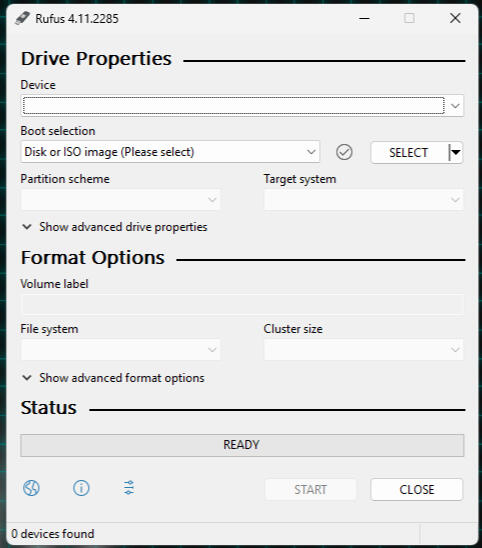
Rufus may look intimidating, but it's as simple as other USB writers, just with more options for directly installing your iso to the drive.Select your device in the dropdown menu at the top and the rest of the menus should populate automatically. Do not change any of these unless you have trouble flashing or installing. Once the status bar says "READY" you should be able to click the start button. Rufus may ask to install additional files at this point (usually a new version of grub). Say yes to this, as it's important for the file on the drive to work. Once Rufus is done flashing your .iso file to the drive, you can reboot, given you know your boot selector key.
Installing Linux
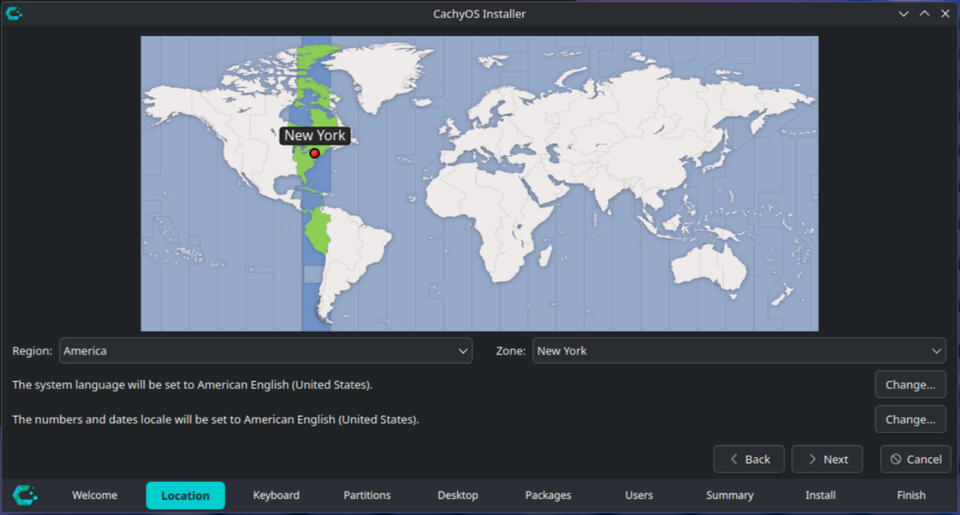
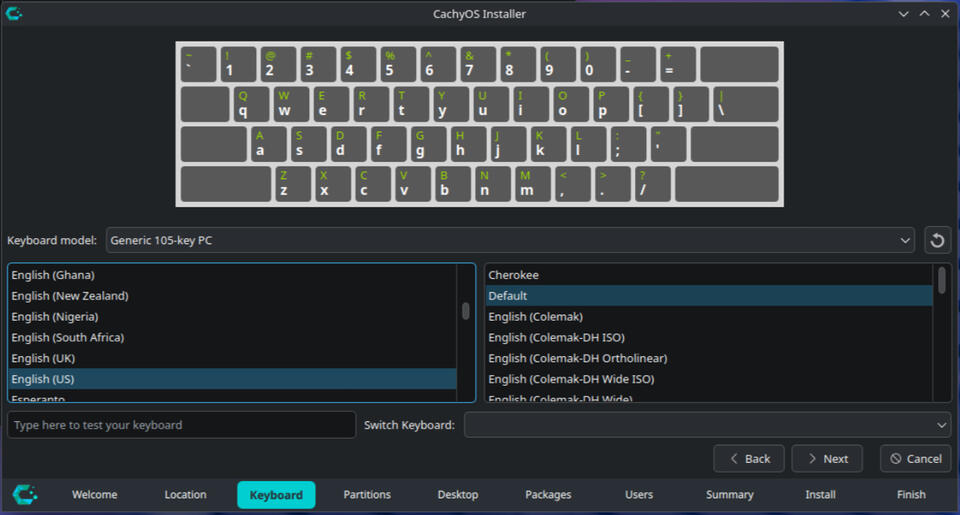
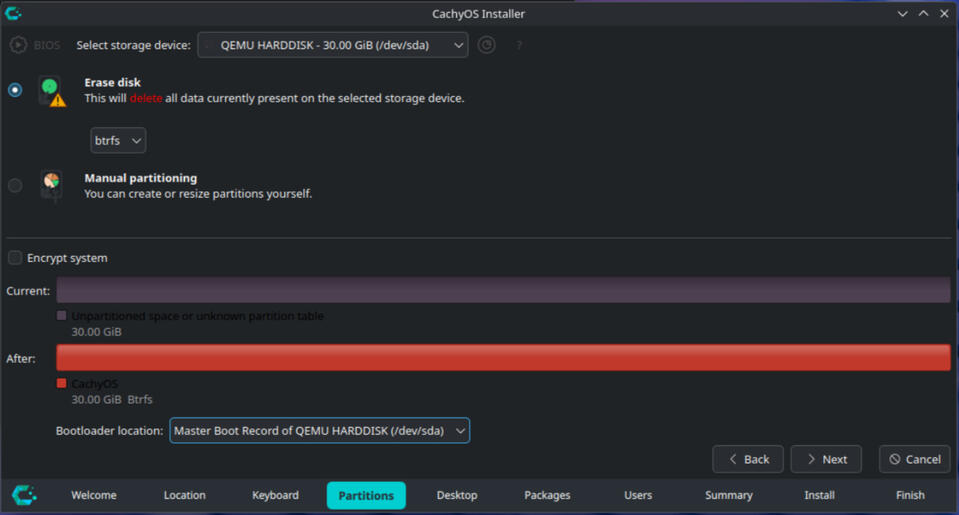
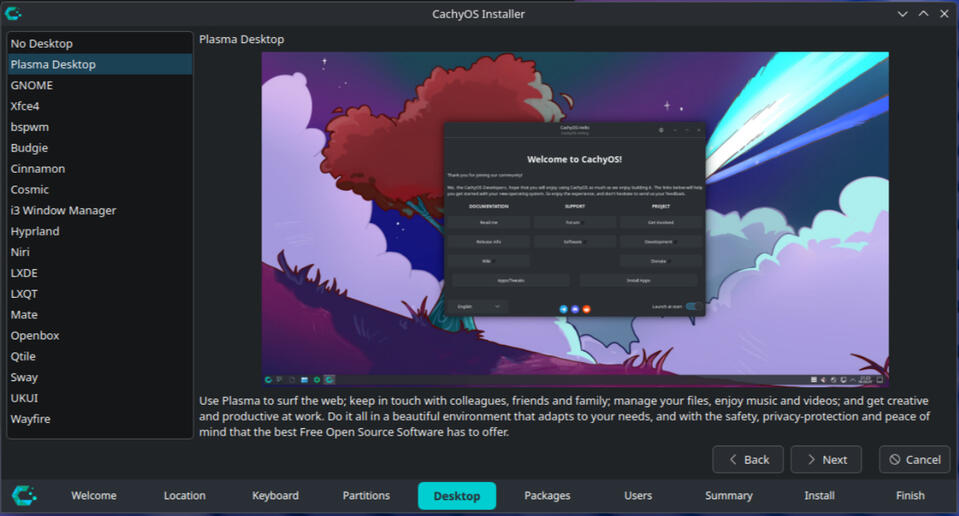
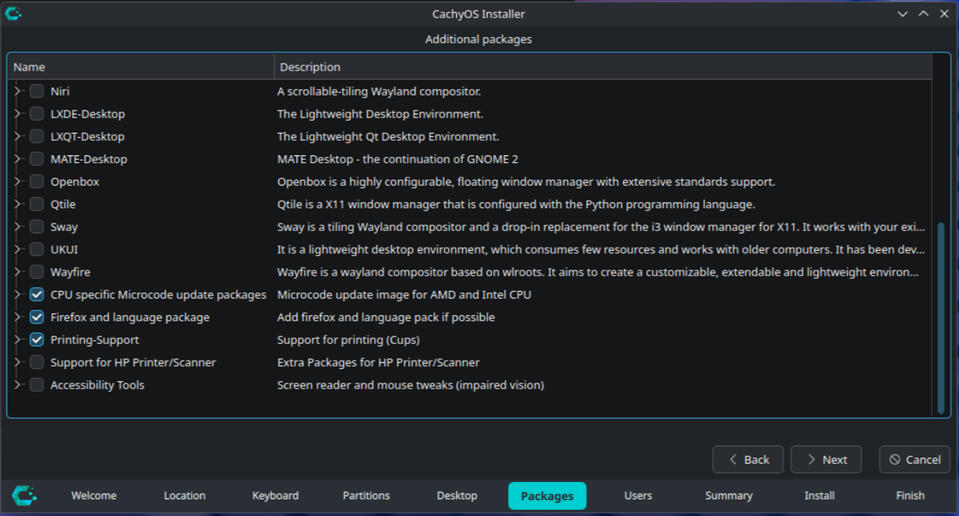
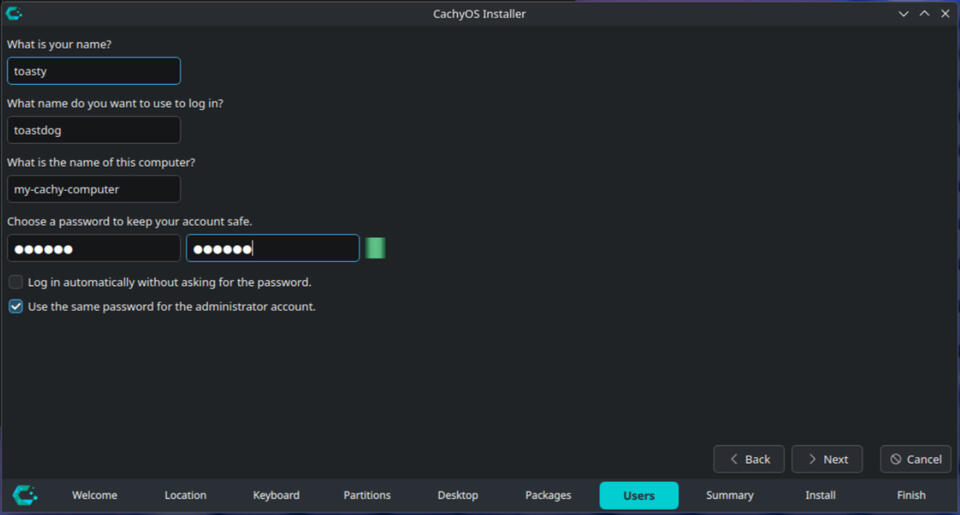
Now that you have your bootable media created, you should look up what the boot key for your motherboard/manufacturer is. For my Dell laptop, it's f12, for Macs it's holding Option, but it could be something else for you.Restart your computer and spam (or hold, for some) your designated boot key until you get into your computers boot menu. You should be able to select the USB drive from this menu if everything has been done correctly so far.You may see another boot menu at this point; use the arrow keys to navigate and choose the install option, or "test and install" if it's an option (Usually the first in the list). Give your system a moment to boot, and find the install menu on the taskbar or desktop if it's not already open.From here, it all gets quite a bit easier! The installer will guide you through selecting a timezone, keyboard layout, install size, and any individual packages you need, like printer support and the accessibility suite. (You can always install these later if you forget to here!) Name your user account (I just use my name for this), and set a name for your computer. Make sure your password is something memorable, and I would highly reccommend checking the option to use the same password for the root account. Your root password will be used quite often for installing new apps and software.Once the installation finishes, you're free to reboot into your new system and unplug your USB drive.
Post-Installation
Congratulations!
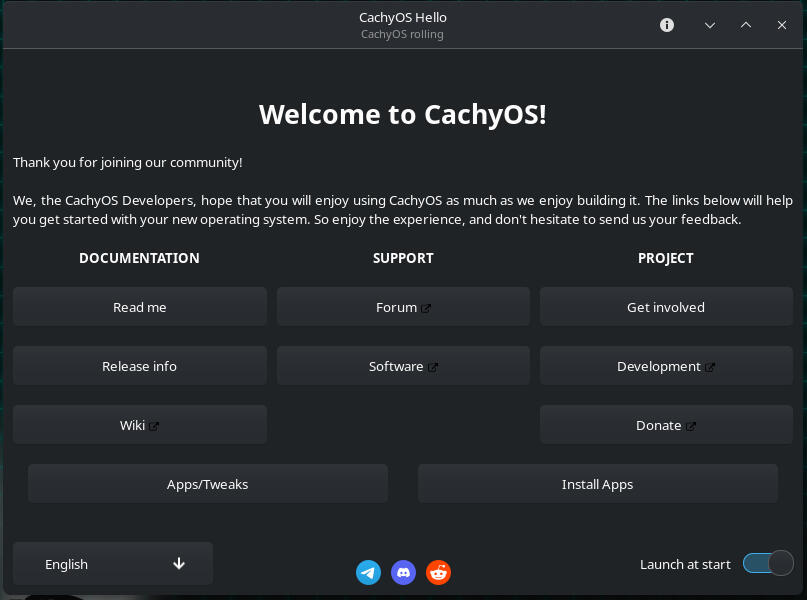
You've successfully installed linux! On CachyOS, make sure to select "Linux cachyos" instead of just "Linux" in the boot menu if it's an option.On first boot, you should be greeted by a welcome screen if your distro of choice has one.
First Steps
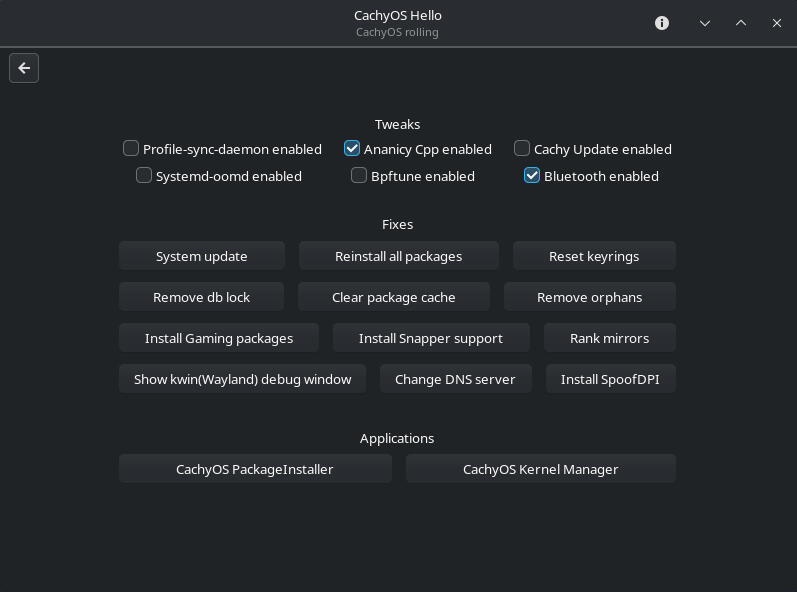
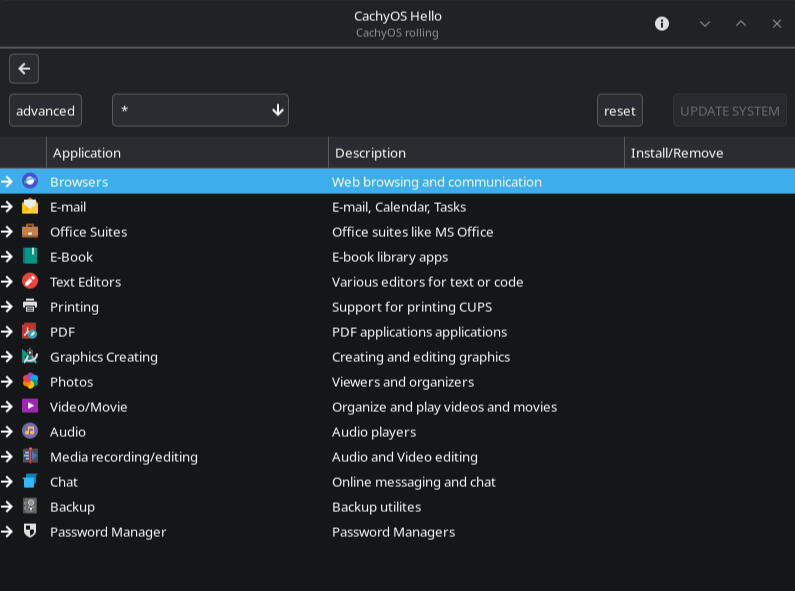
First things first, definitely check out the "Apps/Tweaks" menu and check anything in there if needed, like checking for updates, enabling Cachy Update if you want notifications for new updates, and especially the gaming packages if you need them.Be sure to also check out the "Install Apps" menu to install any software you may need, like browsers, media players, and any other basics you may need. Be sure to check out the Recommended Apps section of this guide for some software that may not be in this section of the welcome app.
Recommended Apps

Vesktop is one of the best Discord client when it comes to linux compatability. The official Discord client has a lot of broken features which Vesktop fixes and even adds onto with its built-in Vesktop client with plugins and even theme support.Official Description:
"Vesktop is a cross platform desktop app aiming to give you a snappier Discord experience with Vencord pre-installed. Vesktop comes bundled with Venmic, a purpose-built library to provide functioning audio screenshare."

Another great Discord client focused on linux is Equibop! It has all the features of vesktop, but with more plugins and features of its own.Official Description:
"Equibop is a custom Discord desktop client aiming to give you better performance and a range of useful features. A fork that offers a wider selection of plugins from the community."

Pamac is a nifty alternative to the appstore that comes with your system for installing native Linux software, replacing the command-line "pacman" command on distributions based on arch. There are alternative package managers as well, such as Shelly or Octopi.Official Description:
"A Gtk frontend, Package Manager based on libalpm with AUR and Appstream support."

Gear Lever lets you integrate .appimage files (standalone software) into your system's app launcher menu, as opposed to keeping them in a folder somewhere on your system to seek out whenever you need them.Official Description:
"An utility to manage AppImages with ease! Gear lever will organize and manage AppImage files for you, generate desktop entries and app metadata, update apps in-place or keep multiple versions side-by-side."

Bazaar is an amazing appstore for all kind of linux flatpak software, with ways to support the authors if you wish.Official Description:
"A new app store for GNOME with a focus on discovering and installing applications and add-ons from Flatpak remotes, particularly FlathubIt emphasizes supporting the developers who make the Linux desktop possible. Bazaar features a "curated" tab that can be configured by distributors to allow for a more locallized experience."

Faugus Launcher lets you launch Windows games and .exe files with Valve's proton runtime (without having steam open) with a simple interface.Official Description:
"A simple and lightweight app for running Windows games using UMU-Launcher."

Winboat Is a wonderful little piece of software that sets up a Windows virtual machine for you, and integrates it into your system to make it feel like your Windows apps are running natively.Winboat in in beta. use at your own risk!Requires a bit of setup, check out SomeOrdinaryGamers' Video on it for info!Official Description:
"Windows for Penguins. Run Windows apps on Linux with seamless integration"